Dark Mode with prefers-color-scheme
Reviewed & published by Brayan K
Dark mode is an alternate colour theme that the prefers-color-scheme media query detects from the user's operating-system setting, letting you swap to darker backgrounds and lighter text automatically — best implemented with CSS variables so a single toggle can override the system default.
Part of the free HTML & CSS course at LearnCodingFast — hands-on lessons with examples you run in your browser, plus practice exercises and a quick quiz.
By the end of this lesson you'll build a page that follows the operating system's dark mode automatically, adds a Light / Dark / System toggle that overrides it, remembers the choice across refreshes, and loads with no flash of the wrong theme.
What You'll Learn
- Detect the OS theme with @media (prefers-color-scheme: dark)
- Use the color-scheme property so native UI matches your theme
- Theme a whole page by overriding CSS custom properties (variables)
- Add a Light / Dark / System toggle that overrides the system setting
- Persist the user's choice in localStorage so a refresh keeps it
- Avoid the flash of the wrong theme (FOUC) with a blocking head script
💡 Real-World Analogy
Dark mode is like the automatic headlights in a car. By default they switch on when it gets dark outside — that's the system preference (prefers-color-scheme) reading the world for you. But there's also a manual switch on the dash: you can force the lights on or off whenever you like — that's the user toggle (data-theme), and because you turned it by hand it overrides the automatic sensor. A well-built car also remembers the switch position next time you start it (localStorage), and the dashboard doesn't blind you with a bright flash before settling — the lights are already at the right level the instant you turn the key (no flash of the wrong theme).
The three layers of a real dark mode
A media query is a CSS block that only applies when a condition is true. @media (prefers-color-scheme: dark) is true when the user has set their operating system to dark mode. The browser flips this for you the moment the OS changes — no JavaScript and no page reload needed.
The clean way to theme a page is with CSS custom properties (variables). You declare colours once on :root — --bg, --text, --primary — and every rule reads them with var(--bg). To go dark, you re-declare the same variables with darker values inside the media query. Because the rest of your CSS never hardcodes a colour, the whole page repaints from those few lines.
Real apps also need a manual override: some people want dark even when their OS is light. Add a [data-theme] attribute on <html> and declare the variables again under [data-theme="dark"]. Because an attribute selector beats a bare :root, the user's choice wins over the system setting. Removing the attribute hands control back to the OS. That's the full stack: system default → user override → remembered choice.
One easily-missed piece is the color-scheme property. Setting color-scheme: light dark on :root tells the browser to paint native UI — form fields, scrollbars, the default page canvas — in the matching scheme. Forget it and you'll get white inputs and a white scrollbar on an otherwise dark page.
CSS Variables Strategy
| Variable | Light Value | Dark Value | Purpose |
|---|---|---|---|
| --bg | #ffffff | #121212 | Page background |
| --surface | #f5f5f5 | #1e1e1e | Card / panel background |
| --text | #1a1a1a | #e0e0e0 | Primary text |
| --primary | #1976d2 | #64b5f6 | Brand colour (lighter in dark) |
| --border | #e0e0e0 | #333333 | Dividers and borders |
1. Worked example: system theme + a toggle
Read every comment, then run it. With no button clicked it follows your OS. Click Light or Dark to override, and System to hand control back. This one example contains all four layers — color-scheme, the media query, the variables, and the [data-theme] override.
<!DOCTYPE html>
<html lang="en">
<head>
<style>
/* 1) color-scheme tells the browser to render native UI (form controls,
      scrollbars, the default page background) in light OR dark to match. */
:root { color-scheme: light dark; }

/* 2) LIGHT theme = the default. Define every colour that changes as a variable. */
:root {
    --bg: #ffffff;        /* page background        */
    --surface: #f5f5f5;   /* card background        */
    --text: #1a1a1a;      /* main text              */
    --muted: #666666;     /* secondary text         */
    --primary: #1976d2;   /* brand / links          */
    --border: #e0e0e0;    /* dividers               */
}

/* 3) DARK theme = re-declare the SAME variables inside the media query.
      Every element using var(...) updates automatically — no JS. */
@media (prefers-color-scheme: dark) {
    :root {
        --bg: #121212; --surface: #1e1e1e; --text: #e0e0e0;
        --muted: #999999; --primary: #64b5f6; --border: #333333;
    }
}

/* 4) USER OVERRIDE: a data-theme attribute beats the media query because an
      attribute selector is more specific than plain :root. */
[data-theme="light"] { --bg: #ffffff; --surface: #f5f5f5; --text: #1a1a1a; --muted: #666; --primary: #1976d2; --border: #e0e0e0; }
[data-theme="dark"]  { --bg: #121212; --surface: #1e1e1e; --text: #e0e0e0; --muted: #999;  --primary: #64b5f6; --border: #333; }

/* Everything below reads the variables — it never hardcodes a colour. */
body { font-family: system-ui, sans-serif; background: var(--bg); color: var(--text); padding: 24px; margin: 0; transition: background .3s, color .3s; }
.bar { display: flex; gap: 8px; margin-bottom: 20px; }
.bar button { padding: 8px 14px; border: 2px solid var(--primary); background: transparent; color: var(--primary); border-radius: 6px; cursor: pointer; font-weight: 600; }
.bar button:hover { background: var(--primary); color: var(--bg); }
.card { background: var(--surface); border: 1px solid var(--border); border-radius: 12px; padding: 20px; margin: 14px 0; }
.card h3 { color: var(--primary); margin-top: 0; }
.card p { color: var(--muted); line-height: 1.7; }
code { background: var(--surface); border: 1px solid var(--border); padding: 2px 6px; border-radius: 4px; }
</style>
</head>
<body>
    <h1>Dark mode done right</h1>
    <div class="bar">
        <!-- System = remove the attribute so the media query takes over again -->
        <button onclick="document.documentElement.removeAttribute('data-theme')">🖥 System</button>
        <button onclick="document.documentElement.setAttribute('data-theme','light')">☀ Light</button>
        <button onclick="document.documentElement.setAttribute('data-theme','dark')">🌙 Dark</button>
    </div>
    <div class="card"><h3>It follows your OS</h3><p>With no button clicked, this page reads your system setting via <code>prefers-color-scheme</code>. Switch your OS to dark and watch it change with zero JavaScript.</p></div>
    <div class="card"><h3>...but you can override it</h3><p>Click Light or Dark to force a theme. The <code>data-theme</code> attribute wins over the system preference. Click System to hand control back to the OS.</p></div>
    <!-- ✅ Expected: page matches your OS until you click a button; then it obeys the button. -->
  <!-- ✅ Expected result, measured in a real browser:
     .bar -> display: flex
     .bar button -> cursor: pointer
     .card -> count: 2
  -->
</body>
</html>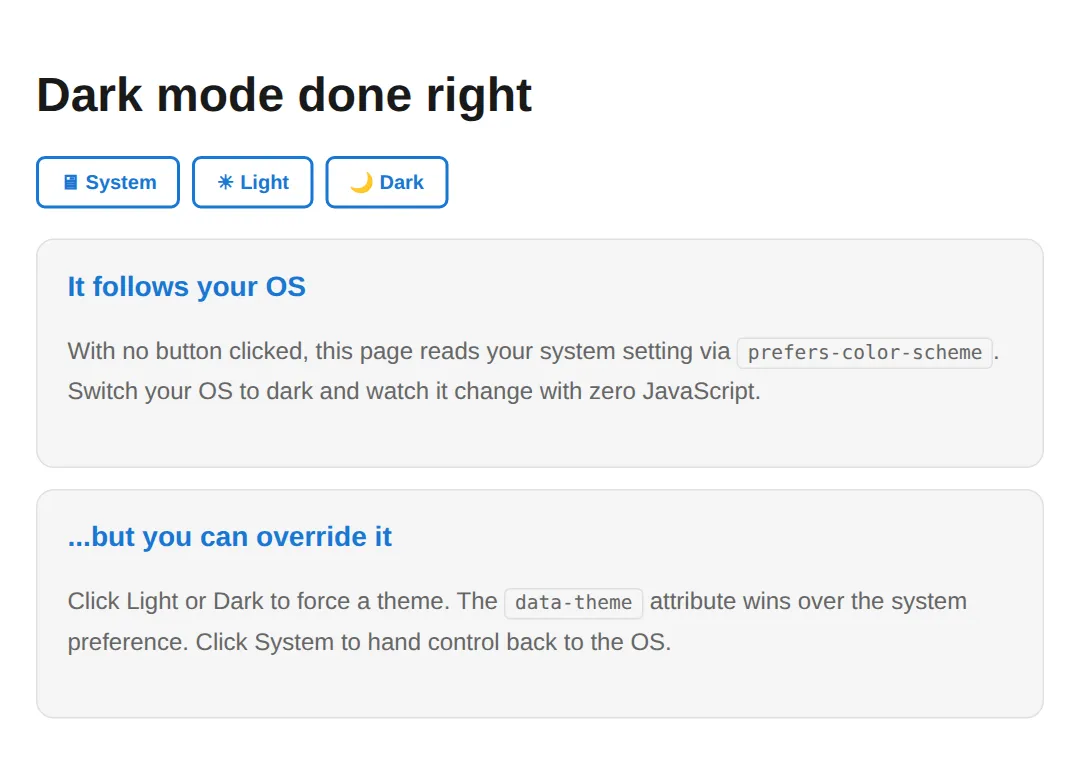
Why the variables repaint everything: custom properties follow the normal cascade. When the media query or [data-theme] re-declares --bg on :root, every element using var(--bg) instantly reads the new value. You never toggle a class on individual elements — you change the source of truth once.
2. 🎯 Your turn: add system dark mode
Fill in the blanks
This page already has light colours. Make it follow the OS: set color-scheme, point the media query at dark, and give --bg a near-black value. Each ___ has a 👉 hint, and the expected result is in the comment at the bottom.
<!DOCTYPE html>
<html lang="en">
<head>
<style>
/* 🎯 YOUR TURN — make this page support system dark mode. Replace each ___ */

/* 1) Let native controls follow the theme */
:root { color-scheme: ___; }     /* 👉 replace ___ with: light dark */

/* Light theme defaults (already done) */
:root {
    --bg: #ffffff; --text: #1a1a1a; --primary: #1976d2; --surface: #f5f5f5; --border: #e0e0e0;
}

/* 2) Dark theme: override the SAME variables for OS dark mode */
@media (prefers-color-scheme: ___) {   /* 👉 replace ___ with: dark */
    :root {
        --bg: ___;        /* 👉 a near-black, e.g. #121212 */
        --text: #e0e0e0;
        --primary: #64b5f6;
        --surface: #1e1e1e;
        --border: #333333;
    }
}

body { background: var(--bg); color: var(--text); font-family: system-ui; padding: 24px; }
.card { background: var(--surface); border: 1px solid var(--border); border-radius: 12px; padding: 20px; }
.card h3 { color: var(--primary); margin-top: 0; }
</style>
</head>
<body>
    <div class="card"><h3>Adaptive card</h3><p>Switch your OS appearance and this should flip automatically.</p></div>
    <!-- ✅ Expected: light OS → white card; dark OS → near-black background, light text. -->
</body>
</html>
3. 🎯 Your turn: toggle + remember the choice
Wire up three blanks
Finish the JavaScript toggle: apply the chosen theme to <html>, save it with localStorage, and re-apply the saved value on load. Check your work against the ✅ Expected comment.
<!DOCTYPE html>
<html lang="en">
<head>
<style>
:root { color-scheme: light dark; --bg:#fff; --text:#1a1a1a; --primary:#1976d2; --surface:#f5f5f5; --border:#e0e0e0; }
@media (prefers-color-scheme: dark) { :root:not([data-theme]) { --bg:#121212; --text:#e0e0e0; --primary:#64b5f6; --surface:#1e1e1e; --border:#333; } }
[data-theme="dark"] { --bg:#121212; --text:#e0e0e0; --primary:#64b5f6; --surface:#1e1e1e; --border:#333; }
body { background: var(--bg); color: var(--text); font-family: system-ui; padding: 24px; transition: background .3s; }
button { padding: 10px 18px; border:2px solid var(--primary); background:transparent; color:var(--primary); border-radius:8px; cursor:pointer; font-weight:600; }
.card { background:var(--surface); border:1px solid var(--border); border-radius:12px; padding:20px; margin-top:16px; }
</style>
</head>
<body>
    <button id="btn" onclick="toggleTheme()">Toggle theme</button>
    <div class="card"><p id="msg">Theme: system</p></div>
    <script>
        // 🎯 YOUR TURN — finish the toggle and make it remember the choice.
        function toggleTheme() {
            const root = document.documentElement;
            const next = root.getAttribute('data-theme') === 'dark' ? 'light' : 'dark';

            // 1) Apply the chosen theme to the <html> element
            root.setAttribute('data-theme', ___);          // 👉 replace ___ with: next

            // 2) Save the choice so a refresh keeps it
            localStorage.___('theme', next);               // 👉 replace ___ with: setItem

            document.getElementById('msg').textContent = 'Theme: ' + next;
        }

        // 3) On load, read the saved choice and apply it
        const saved = localStorage.getItem('theme');
        if (saved) {
            document.documentElement.setAttribute('data-theme', ___);  // 👉 replace ___ with: saved
            document.getElementById('msg').textContent = 'Theme: ' + saved;
        }
        // ✅ Expected: click flips light/dark; refresh keeps your last choice.
    </script>
</body>
</html>
4. Mini-challenge: kill the theme flash
Build it from the outline
No blanks this time — just a comment outline in a <head> script. Read the saved theme (or fall back to the system preference) and set data-theme before the body paints, so a dark-mode user sees no white flash on load. The steps and expected result are in the comments.
<!DOCTYPE html>
<html lang="en">
<head>
<script>
    // 🎯 MINI-CHALLENGE — kill the theme flash (FOUC) and respect both layers.
    // This inline <script> in <head> runs BEFORE the body paints. Use it to set
    // data-theme up front so the user never sees the wrong theme for a frame.
    //
    // 1. Read localStorage.getItem('theme')  -> 'light' | 'dark' | null
    // 2. If it is null, fall back to the SYSTEM preference:
    //       window.matchMedia('(prefers-color-scheme: dark)').matches
    // 3. Set document.documentElement.setAttribute('data-theme', theme)
    //    BEFORE the page renders (that is why this script sits in <head>).
    //
    // ✅ Expected: with 'dark' saved, the page loads dark with NO white flash.

    // your code here
</script>
<style>
    :root { color-scheme: light dark; --bg:#fff; --text:#1a1a1a; --surface:#f5f5f5; }
    [data-theme="dark"] { --bg:#121212; --text:#e0e0e0; --surface:#1e1e1e; }
    body { background: var(--bg); color: var(--text); font-family: system-ui; padding: 24px; }
    .card { background: var(--surface); padding: 20px; border-radius: 12px; }
</style>
</head>
<body>
    <div class="card"><h3>No flash on load</h3><p>If you set data-theme in the head script above, refreshing in dark mode shows zero white flash.</p></div>
  <!-- ✅ Expected result, measured in a real browser:
     body -> padding-top: 24px
     .card -> padding-top: 20px
  -->
</body>
</html>
When to reach for this
- Every modern site: users expect dark mode; it reduces eye strain in low light and saves battery on OLED screens.
- Content-heavy apps: reading apps, docs, and dashboards benefit most because people stare at them for long stretches.
- Branding: define your own light and dark palette — don't let the browser guess your brand colour.
- Give a choice: always offer a manual toggle as well as following the OS — some users want the opposite of their system setting.
Common Errors (and the fix)
- Hardcoded colours instead of variables. Symptom: most of the page goes dark but a few elements stay stubbornly light. Cause: those rules use a literal like color: #333 instead of var(--text). Fix: route every colour that changes between modes through a custom property — if it's hardcoded, it can't adapt.
- No system support at all. Symptom: a toggle works but the page ignores the user's OS setting. Cause: there's a [data-theme] block but no @media (prefers-color-scheme: dark). Fix: add the media query so the page has a sensible default before anyone touches the toggle.
- Flash of the wrong theme (FOUC). Symptom: a dark-mode user briefly sees a white page on every load. Cause: you read localStorage and set the theme after render (e.g. at the bottom of the body, or in a deferred script). Fix: set data-theme in a small blocking <script> in the <head> so the first paint is already correct.
- Forgetting color-scheme. Symptom: the page is dark but form inputs, the scrollbar, and the default canvas stay bright white. Cause: the browser still thinks the page is light-only. Fix: add color-scheme: light dark to :root so native UI matches your theme.
📋 Quick Reference
| You want to… | Use |
|---|---|
| Detect the OS dark setting | @media (prefers-color-scheme: dark) |
| Make native UI follow the theme | :root { color-scheme: light dark } |
| Theme everything from one place | --bg: …; background: var(--bg) |
| Let the user override the OS | [data-theme="dark"] { … } |
| Apply a chosen theme in JS | html.setAttribute('data-theme', t) |
| Hand control back to the OS | html.removeAttribute('data-theme') |
| Remember the choice | localStorage.setItem('theme', t) |
| Read the system setting in JS | matchMedia('(prefers-color-scheme: dark)').matches |
| Avoid the flash | Set data-theme in a blocking <head> script |
🎉 Lesson Complete
- ✅ @media (prefers-color-scheme: dark) detects the OS theme with no JavaScript
- ✅ color-scheme: light dark makes native controls and scrollbars match
- ✅ Theme a whole page by re-declaring CSS variables, not by editing every rule
- ✅ [data-theme] overrides the system setting because it's more specific than :root
- ✅ Persist the choice with localStorage and re-apply it on load
- ✅ Set data-theme in a blocking <head> script to avoid the flash of the wrong theme
Practice quiz
Which media query detects that the user's OS is set to dark mode?
- @media (color-scheme: dark)
- @media (theme: dark)
- @media (prefers-color-scheme: dark)
- @media (dark-mode: on)
Answer: @media (prefers-color-scheme: dark). @media (prefers-color-scheme: dark) is true when the operating system is set to dark mode.
Do you need JavaScript just to follow the OS dark mode setting?
- No — the media query handles it in pure CSS
- Yes, always
- Only in Safari
- Only with a framework
Answer: No — the media query handles it in pure CSS. prefers-color-scheme works in pure CSS; JavaScript is only needed for a manual override toggle.
What does color-scheme: light dark on :root do?
- Sets the page background
- Enables CSS variables
- Forces dark mode
- Tells the browser to render native UI (controls, scrollbars) in the matching scheme
Answer: Tells the browser to render native UI (controls, scrollbars) in the matching scheme. color-scheme makes native widgets like form fields and scrollbars match the active scheme.
What is the recommended way to swap a page's colors for dark mode?
- Edit every rule by hand
- Re-declare the same CSS custom properties with darker values
- Use a different stylesheet per element
- Toggle a class on each element
Answer: Re-declare the same CSS custom properties with darker values. Declare colors as variables once, then re-declare the same variables with dark values in the media query.
Why does [data-theme="dark"] override @media (prefers-color-scheme: dark)?
- An attribute selector is more specific than a bare :root in a media query
- It loads later
- Media queries are ignored
- It uses !important
Answer: An attribute selector is more specific than a bare :root in a media query. The attribute selector has higher specificity than a plain :root, so the user's explicit choice wins.
How do you hand control back to the OS after a manual override?
- Reload the page
- Delete localStorage
- Remove the data-theme attribute from <html>
- Set color-scheme to none
Answer: Remove the data-theme attribute from <html>. Removing the data-theme attribute lets the media query (system preference) take over again.
How do you remember the user's theme choice across refreshes?
- A CSS variable
- localStorage.setItem('theme', value)
- The color-scheme property
- A media query
Answer: localStorage.setItem('theme', value). Save the choice with localStorage.setItem and re-apply it on load.
What causes the flash of the wrong theme (FOUC) on load?
- Using CSS variables
- Using color-scheme
- A missing caption
- Setting the theme after the page has already painted
Answer: Setting the theme after the page has already painted. Reading localStorage and applying the theme after first paint causes a brief flash of the default theme.
How do you prevent the theme flash on page load?
- Avoid dark mode
- Set data-theme in a blocking <script> in the <head> before the body renders
- Use a deferred script at the page bottom
- Add transition: none
Answer: Set data-theme in a blocking <script> in the <head> before the body renders. A small blocking <head> script sets data-theme before the first paint, so it's already correct.
Why is pure black (#000000) usually avoided for dark mode backgrounds?
- It is invalid CSS
- Browsers render it as grey anyway
- Harsh contrast causes eye strain and leaves no room for elevation cues
- It uses more battery
Answer: Harsh contrast causes eye strain and leaves no room for elevation cues. Pure black against white text causes halation/eye strain; a dark grey like #121212 is recommended.
Continue this course
- Previous: Custom Properties (CSS Variables) for Themes & Dynamic UI
- Next: Advanced Positioning: sticky, fixed, absolute, smart layouts — Master all position values and build sticky headers, sidebars, and overlays
- Quick reference: HTML & CSS cheat sheet
Frequently asked questions
Do I need JavaScript to support dark mode?
No. The @media (prefers-color-scheme: dark) media query reads your operating system's appearance setting and applies the matching CSS automatically — it is pure CSS and works in every modern browser. You only reach for JavaScript when you want an in-page toggle that lets users override the system setting, and you persist that choice with localStorage.
What does the color-scheme property actually do?
color-scheme: light dark tells the browser that your page supports both schemes, so it renders native UI in the matching colours: form controls, scrollbars, the default canvas/background, and the spell-check underline. Without it, a dark page can still show white form inputs and a white scrollbar. Set it on :root so it applies to the whole document.
Why does [data-theme="dark"] override @media (prefers-color-scheme)?
It comes down to CSS specificity. An attribute selector like [data-theme="dark"] is more specific than a bare :root inside a media query, so when both set the same variable the attribute wins. That is exactly what you want: the system preference is the default, and an explicit user choice (the attribute) overrides it. Removing the attribute hands control back to the OS.
How do I stop the flash of the wrong theme (FOUC) on page load?
The flash happens when you read localStorage and set the theme after the page has already painted in the default theme. Fix it by setting data-theme in a tiny blocking <script> placed in the <head>, before any body content renders. That script reads the saved choice (or the system preference if none is saved) and sets the attribute so the very first paint is already correct.
Should I use pure black (#000000) for dark mode backgrounds?
Usually not. Pure black against pure-white text creates harsh contrast that causes halation and eye strain, and it leaves no room for elevation/shadow cues. Use a very dark grey like #121212 (Material Design's recommendation) for the page and slightly lighter greys such as #1e1e1e for raised surfaces like cards.